Getting Started — iOS
This guide creates a brand-new iOS app in Xcode, integrates the Interstellar SDK the most basic way, and ends with a single screen showing the root account ID — nothing else.
One SwiftUI View, one InterstellarSdk.create(...) call. No pinpad, no balances UI — those are covered by the API Reference and pinpad guide.
Prerequisites
| Tool | Version / notes |
|---|---|
| macOS | Apple Silicon (M1/M2/M3/M4) |
| Xcode | 15+ (the SDK package targets iOS 17) — see Step 0 |
| Rust / KMP / Gradle / linker flags | not needed — the published package ships the compiled frameworks |
| Interstellar stack | the local Docker stack from the M6 tutorial (defaults: wss://127.0.0.1:2090 / ws://127.0.0.1:9944 / IPFS 5001) |
| SDK access | read access to the private wallet-app-internal repo — the repo that hosts the SDK's release — the SDK is published as an asset of its private release (see SDK access) |
Step 0 — Install Xcode and a Simulator
The steps below describe a fresh-machine setup. The subsequent steps (creating the project, adding the SDK, running the app) have been tested on a VM based on the image ghcr.io/cirruslabs/macos-tahoe-xcode:latest, which itself is based on the macOS 26 image from actions/runner-images. That image ships many dependencies pre-built, so your mileage on a clean Mac may vary (the commands and links below are the canonical way).
The Android guide starts from "install Android Studio + the SDK"; the iOS equivalent is Xcode + a simulator runtime.
0.1 — Install Xcode
- Open the Mac App Store and install Xcode (or download it from the Apple Developer website — the App Store build is the one that keeps itself up to date).
- Launch it once. Xcode asks to install additional components (the platform support files) — accept, and let it finish (it is a large download).
- If you skipped the prompt, add them later from Xcode → Settings → Components — cf Downloading and installing additional Xcode components.
xcode-select --install installs the (smaller) command line tools — useful for xcrun simctl, but not a replacement for the full Xcode: you need the full IDE to create the project, and the simulator runtime below.
0.2 — Install a Simulator runtime
A simulator runtime (the iOS OS itself) is a separate, large download:
- Xcode → Settings → Components → Platforms → pick the iOS version (17 or later) and download it; or
- let Xcode prompt you when you pick a run destination for the first time.
0.3 — Create a simulator device
- Xcode → Window → Devices and Simulators (or the Device Hub in Xcode 16+) → the Simulators tab.
- + → pick a device type (e.g. iPhone 16) and the iOS runtime you installed → Create.
You can also do it from the command line:
xcrun simctl list devices available     # what is already there
xcrun simctl create "iPhone 16" com.apple.CoreSimulator.SimRuntime.iOS-17-0
0.4 — Sanity check
xcodebuild -version        # the Xcode version
xcodebuild -showsdks       # the installed iOS SDKs
The Interstellar iOS SDK is arm64 only (the device slice + the arm64 simulator slice). On an
Apple Silicon Mac the simulator is arm64 by default; on an Intel Mac set
EXCLUDED_ARCHS[sdk=iphonesimulator*] = x86_64 in your app target.
Step 1 — Create a fresh project
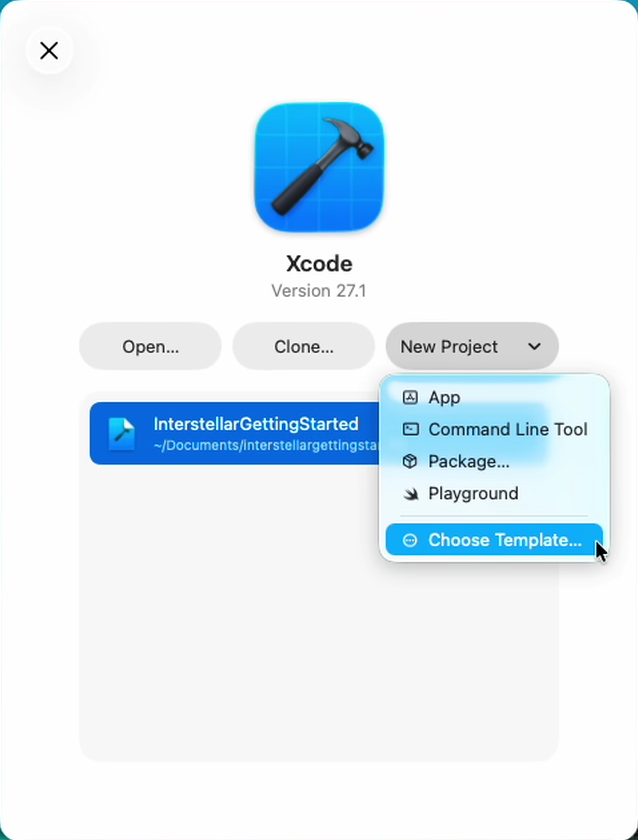
- Xcode → File → New → Project — the "Choose a template" dialog opens. Pick the iOS App template and click Next.
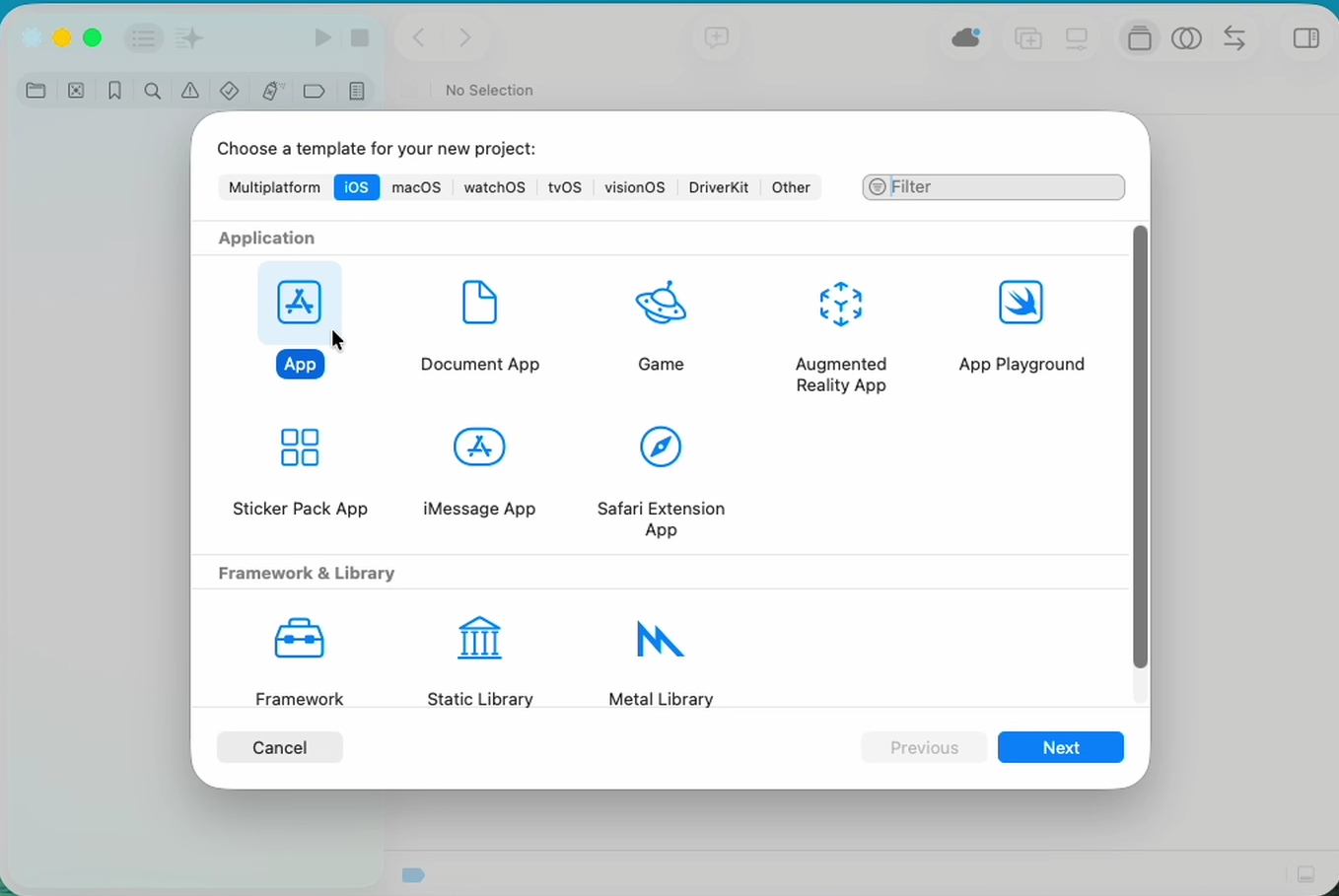
- On the template options screen choose SwiftUI as the interface and Swift as the language.
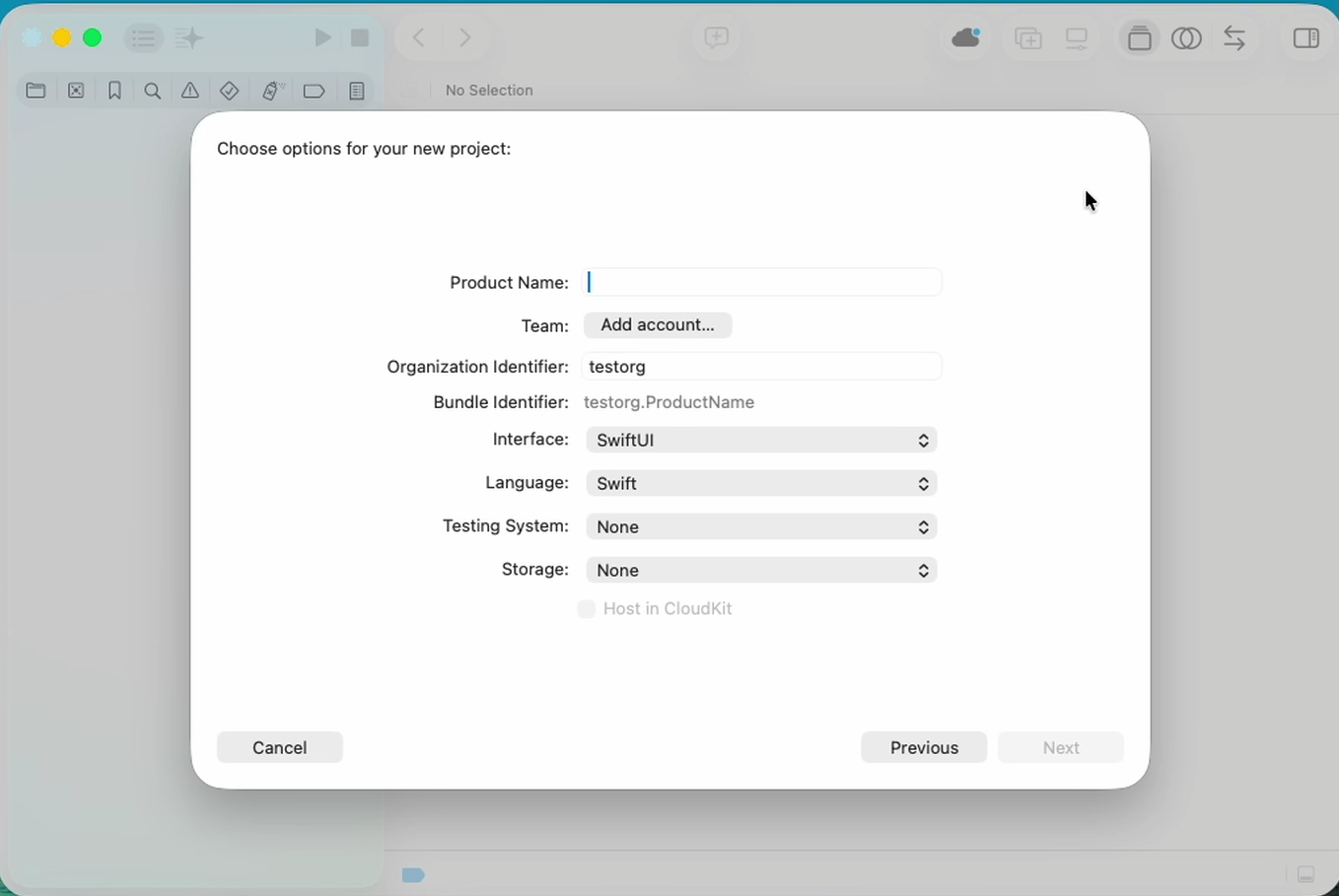
- Fill in the new project form: Product Name (e.g.
MyFirstInterstellarApp), Organization Identifier, etc. Set the minimum deployment target to iOS 17.0 (the SDK package declaresplatforms: [.iOS(.v17)]).
Step 2 — Download the SDK
The iOS SDK is published as a ready-to-use Swift package: one zip, InterstellarSdk-<version>.zip, that contains the whole package (the Swift sources, the uniffi bindings and the two .xcframeworks).
Because the repository is private, the release is private too: the download needs your repository access.
Why this repository? The SDK package could be distributed from anywhere (any release host, any Maven-style registry); for simplicity we chose GitHub's built-in release mechanism on the same repository as the SDK sources. GitHub Releases are scoped to the repository they live on, and the repo is private → the release (and its asset) is private too, only visible to accounts that have read access to wallet-app-internal. The read access is needed for the release — being able to read the sources with the same access is a side effect, not the reason.
The asset is published and verified end-to-end: the m6-v1 release
ships the SDK zip, which the CI consumer smoke test downloads, unzips, builds and
runs in the simulator. The current version is 0.1.0 (InterstellarSdk-0.1.0.zip);
new versions follow each SDK release — check the
releases page for the
latest and use its zip below.
In the browser — open the release and download the asset: github.com/Interstellar-Network/wallet-app-internal/releases/tag/m6-v1
Or with the GitHub CLI (handy if you already have a token with the repo scope):
gh release download m6-v1 \
  --repo Interstellar-Network/wallet-app-internal \
  --pattern "InterstellarSdk-*.zip"
unzip InterstellarSdk-<version>.zip
You now have a single folder, InterstellarSdk/, that looks like this:
InterstellarSdk/
├── Package.swift                    ← ready to use (nothing to edit)
├── README.md
├── substrate_clientFFI.xcframework/ ← the uniffi FFI of the Rust substrate-client
├── rendererFFI.xcframework/         ← the C FFI of the Rust renderer (Bevy/Metal)
└── Sources/InterstellarSdk/         ← the SDK layer + the pre-generated uniffi bindings
Why not a "remote" (hosted) Swift package?
The release also attaches the two .xcframeworks individually, with their SPM checksums,
so a .binaryTarget(url:checksum:) package could be written — but for a private
repository that path is not worth it:
- SwiftPM downloads binary targets anonymously. A private release asset needs
authentication and SwiftPM has nowhere to put a token, so the resolution simply fails
(404/403). The usual workarounds (
~/.netrc, a custom URL scheme) are fragile. - Every new build invalidates the checksum. The checksum lives in
Package.swift, so each SDK release means: upload → recompute the checksum → editPackage.swift→ re-publish. If the checksum does not match, the resolution fails hard. - The local package (download the zip → Add Local…) needs none of that: no authentication, no checksum, no re-publish loop — Xcode resolves it from the folder on disk.
For more details, cf Publishing a private Swift package on GitHub with a privately hosted xcframework.
Step 3 — Add the package to your project
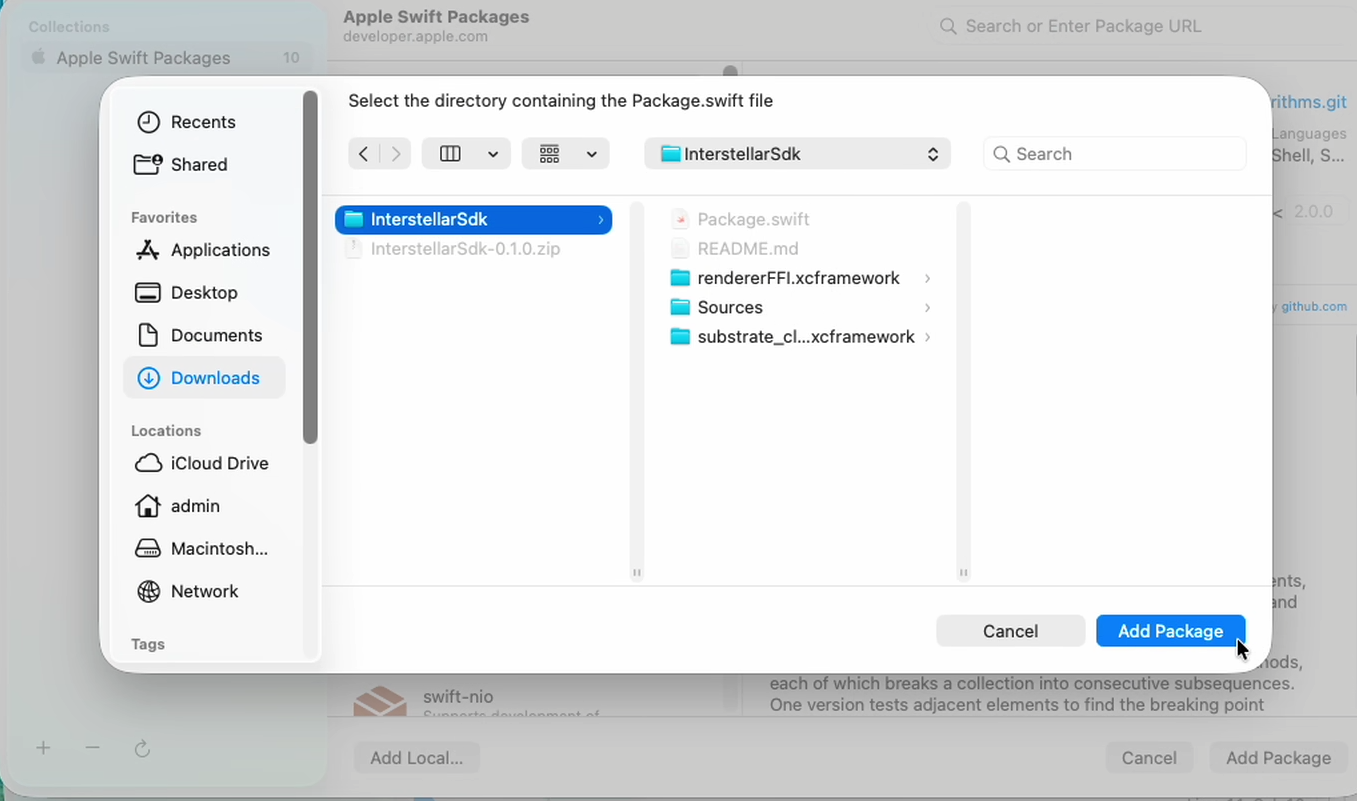
Xcode cannot import the .zip directly. You must unzip it first — the Add Local… dialog needs a folder that contains Package.swift.
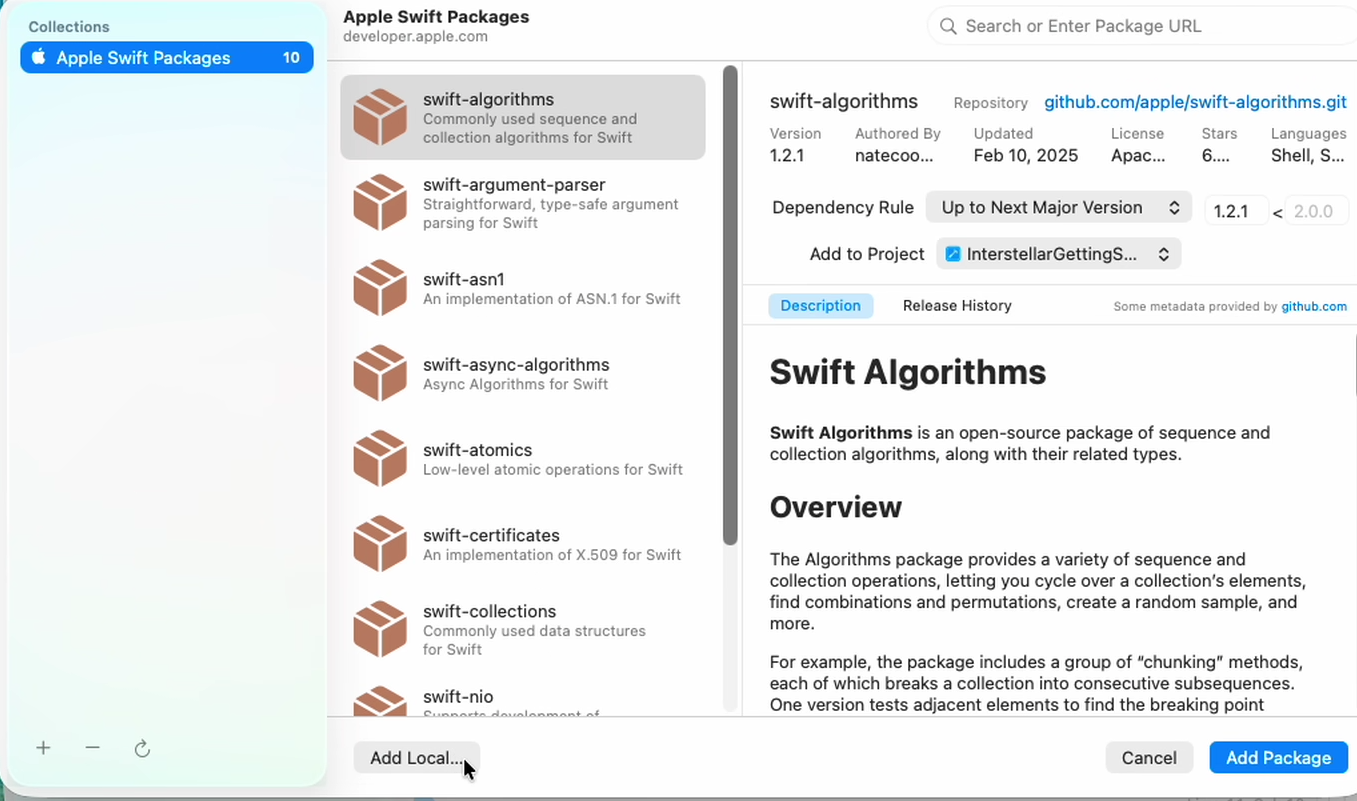
- In Xcode, open File → Add Package Dependencies…
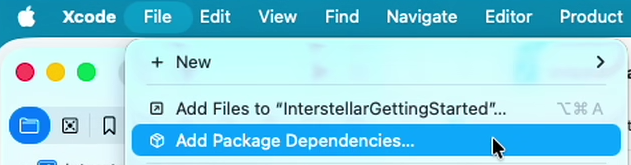
- In the dialog, click Add Local… — it is at the bottom of the dialog.
- Pick the unzipped
InterstellarSdkfolder (the one containingPackage.swift). The dialog fills in the package details.
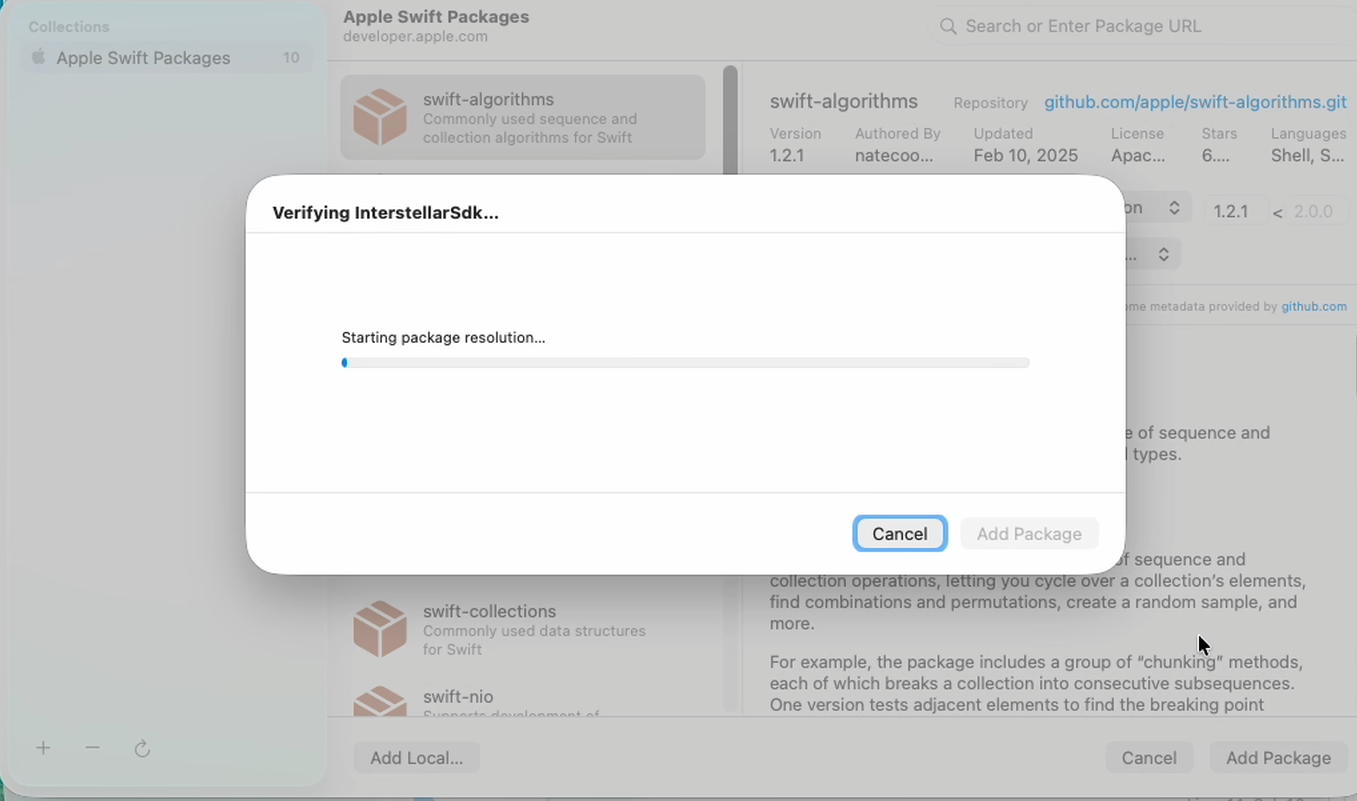
- Click Add Package to confirm. Xcode resolves the package.
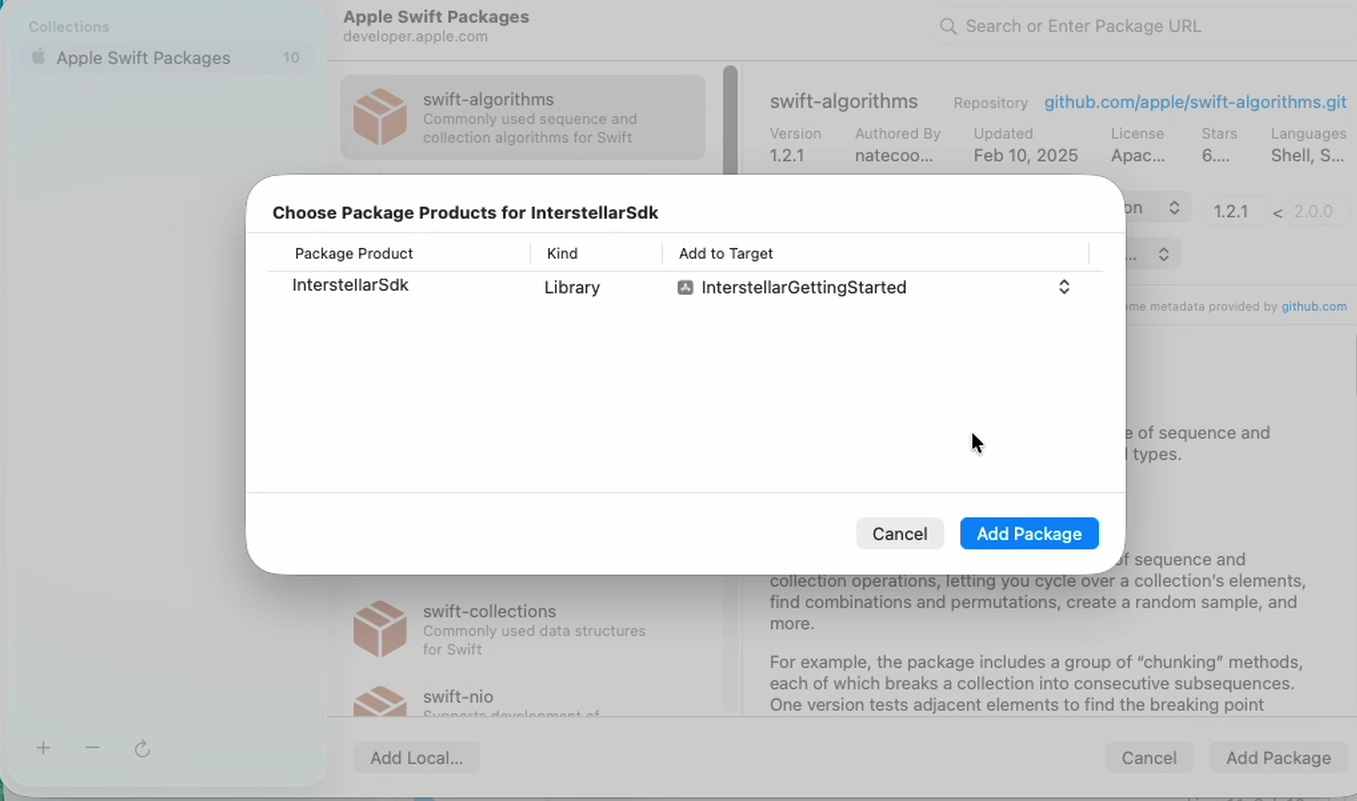
- In the Choose Package Products dialog, add the
InterstellarSdklibrary to your app target and click Add Package.
That is the whole installation: Xcode links and embeds the two dynamic frameworks by itself — there is no "Embed & Sign" build phase, no bridging header and no linker flag to add.
Step 4 — Initialize the SDK and show the root account ID
Replace ContentView.swift with:
import SwiftUI
import InterstellarSdk

struct ContentView: View {
    @State private var rootAccountHex: String = "Initializing..."

    var body: some View {
        VStack {
            Image(systemName: "globe")
                .imageScale(.large)
                .foregroundStyle(.tint)
            Text("Account: \(rootAccountHex)")
                .font(.headline)
                .textSelection(.enabled)
        }
        .padding()
        .task {
            do {
                let sdk = try await InterstellarSdk.create(onServerResetDetected: {})
                let rootData = await sdk.getterRootAccount()
                rootAccountHex = rootData.map { String(format: "%02hhx", $0) }.joined()
            } catch {
                rootAccountHex = "Error: \(error.localizedDescription)"
            }
        }
    }
}

#Preview {
    ContentView()
}
What happens on first launch:
creategenerates a P-256 key in the iOS Keychain,- registers the device/account on the Interstellar worker,
- caches balances and the root account,
getterRootAccount()returns the 32-byte root account id, displayed in hex.
The Keychain key is NOT deleted when the app is uninstalled — reinstalling keeps the same identity and root account. On Android the opposite is true: the key lives in the Android Keystore, which is wiped together with the app, so an uninstall + reinstall gives you a brand-new account. Delete the app's Keychain item or call resetKeyPairAndRegister() for a fresh identity (see Overview).
Step 5 — Run it against the local stack
-
Start the Docker stack (node
9944, worker2090, IPFS5001) — see the M6 tutorial.Docker stack and Xcode on different machinesThe Simulator reaches host
127.0.0.1ports of the machine running Xcode only. If you run the compose stack on a different machine, you MUST handle port forwarding yourself (e.g.ssh -Ltunnels from the Xcode machine to the stack machine, or any equivalent) so that127.0.0.1:2090/9944/5001on the Xcode machine actually reach the stack. -
Pick an iOS Simulator and Run ▶ — simulators reach host
127.0.0.1ports natively (noadb reverseneeded).
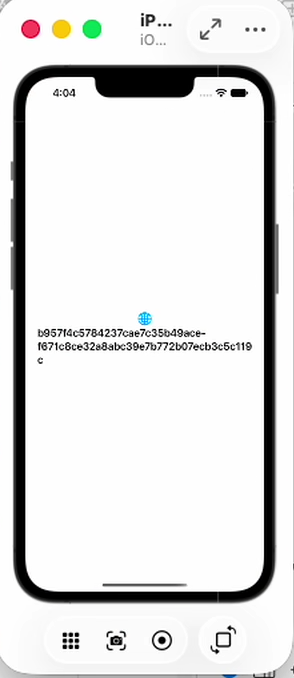
What to expect: While the app starts, watch the Xcode console — you will see logs for the connection to the worker, key generation/registration in the Keychain, and the initial balance/account fetches. If everything works, the app shows the 64-character hex root account ID after about 10–20 seconds.
Step 6 — (advanced, not production-ready) Test the VCA pinpad with an all-in-one ContentView.swift
The file below is an all-in-one "full basic app" that exercises the real VCA pinpad on iOS:
it creates a SOL keypair, shows the SOL address (with copy-to-clipboard), sends a self-transfer
above the VCA threshold, and displays the real Metal-rendered pinpad (TxPinpadScreen) when
the SDK arms it. It is intended for testing the pinpad integration — not for production use.
▶ Show the hidden step 6
Replace the whole content of your hello-world ContentView.swift with the file below — it is
self-contained: the SDK initialization, the SOL keypair/address handling, the test-transaction
trigger, the pinpad overlay and the small toast view are all in this single file. The comments
at the top explain what it does and why each piece exists. Keep the file at the same path
(InterstellarGettingStarted/ContentView.swift).
- Initializes the SDK —
InterstellarSdk.create(onServerResetDetected:)(registration + balance caching happen inside). - Creates the SOL keypair if it does not exist. Registration already creates keypairs; the
extrinsicClientAddKeypair(coinTypeIdx:)call is idempotent (no-op when the keypair exists), so it is safe on every launch. - Fetches the SOL address —
updateBalance(coinTypeIdx:)refreshes the cache, thengetterClientGetAccount(coinTypeIdx:)reads it. iOS API difference: the iOSgetterClientGetAccountis cache-only — Android's falls back to the network itself — so the refresh must be explicit. - Shows the SOL address in a
Textand in the Xcode console (print, the iOS counterpart of Android's Logcat). - Copies the address to the clipboard when you tap it — with the same "Address copied"
toast as the main app (
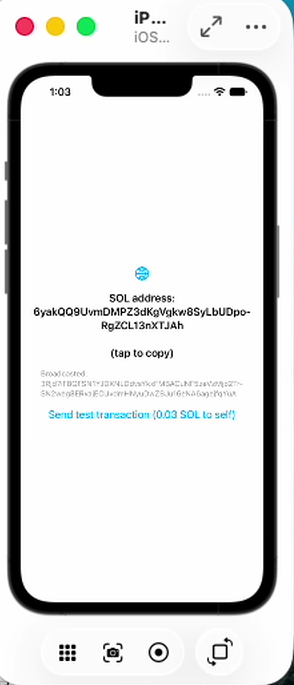
UIPasteboard+ a minimalToastView, the one in the reference app'sComponents/CommonUI.swift). - "Send test transaction" button: initializes a self-send of 0.03 SOL (above the
dev-stack VCA threshold of 0.025 SOL) — note the iOS API difference:
TxAmountis in atomic units (lamports, 9 decimals for SOL), not a human-readableDoublelike Android'sJniTxAmount.fixed(0.03);convertCoinToAtomic(coinType:amount:)does the conversion. The button then pollsgetterClientGetPendingTx()and arms the pinpad withprepareCoinTransfer(coinTypeIdx:)when the pending tx is.requiresVca. - Displays the real VCA pinpad (
TxPinpadScreen) full-screen in a.fullScreenCoverwhen the SDK arms the flow (navigateToPinpad = true+pendingCircuitsPackageset) — the samePinpadOverlaypattern as the reference app'sTabBarView.swift. Entering enough digits triggers the real Metal-rendered pinpad flow;onTxDonehands you the broadcasted tx hash (ornil— checkshowTxFailedfor the rejection).
import SwiftUI
import InterstellarSdk

/**
 * ALL-IN-ONE "Full Basic App" — the iOS mirror of the Android hidden Step 6.
 *
 * Demonstrates, in a single file:
 *  1. creating the SOL keypair if it does not exist (idempotent),
 *  2. displaying the SOL address in a Text AND in the Xcode console,
 *  3. copy-to-clipboard on tapping the address (with a "Address copied" toast),
 *  4. a "Send test transaction" button (SOL, 0.03 = ABOVE the 0.025 VCA threshold),
 *  5. arming and displaying the REAL VCA pinpad (Metal-rendered TxPinpadScreen).
 *
 * The transaction is a SELF-SEND (recipient = our own SOL address), so the goal is to
 * exercise the pinpad — not to move funds. The tx only broadcasts if the correct digits
 * are entered; the pinpad itself works offline once the VCA circuits have been armed.
 */
struct ContentView: View {
    @State private var sdk: InterstellarSdk?
    @State private var solAddress: String?
    @State private var statusText = ""
    @State private var initError: String?
    @State private var sendDisabled = true
    @State private var showPinpad = false          // drives the pinpad .fullScreenCover
    @State private var showToast = false           // toast visibility (drives the overlay)
    @State private var toastText = ""              // the current toast message

    var body: some View {
        ZStack {
            VStack(spacing: 16) {
                Image(systemName: "globe")
                    .imageScale(.large)
                    .foregroundStyle(.tint)

                if let solAddress {
                    // Tap to copy — the same "Address copied" toast as the main app.
                    Text("SOL address:\n\(solAddress)\n\n(tap to copy)")
                        .font(.headline)
                        .multilineTextAlignment(.center)
                        .onTapGesture { copyAddressToClipboard() }
                } else if let initError {
                    Text(initError).foregroundColor(.red)
                } else {
                    Text("Initializing Interstellar SDK…")
                }

                if !statusText.isEmpty {
                    Text(statusText).font(.caption).foregroundColor(.secondary)
                }

                Button("Send test transaction (0.03 SOL to self)") {
                    Task { await sendTestTransaction() }
                }
                .disabled(sendDisabled)
            }
            .padding()
            .task { await initializeSdk() }
        }
        // The pinpad overlay — the same pattern as the reference app's
        // `.fullScreenCover(isPresented: $viewModel.navigateToPinpad)`: our view does not
        // observe the SDK directly, so we mirror the SDK's `navigateToPinpad` into this
        // local flag (set when `prepareCoinTransfer` arms the flow, cleared in onTxDone —
        // the SDK has already cleared its own state by then).
        .fullScreenCover(isPresented: $showPinpad) {
            if let sdk {
                PinpadOverlay(sdk: sdk) { hash in
                    showPinpad = false
                    if sdk.showTxFailed {
                        statusText = "Pinpad rejected (nothing broadcast)"
                        presentToast("Transaction rejected")
                    } else if let hash {
                        statusText = "Broadcasted: \(hash)"
                        presentToast("Transaction sent!")
                    }
                    sendDisabled = false
                }
            }
        }
        // The minimal toast — mirrors the reference app's `ToastView` (auto-hides after 2s).
        // NOTE: `toastText` + `showToast` are SEPARATE @State vars on purpose. Do NOT merge
        // them into an optional (`@State private var toastText: String?`) shown via
        // `if let toastText { ToastView(message: toastText, isPresented: Binding(get:set:)) }`:
        // inside the `if let`, the property is SHADOWED by an immutable local — and the
        // Binding's escaping `set` closure then fails with "'toastText' is a 'let' constant"
        // / "nil cannot be assigned to type String".
        .overlay(alignment: .bottom) {
            if showToast {
                ToastView(message: toastText, isPresented: $showToast)
                    .padding(.bottom, 60)
            }
        }
    }

    // MARK: - 1–5: SDK init, SOL keypair, address display + copy

    private func initializeSdk() async {
        do {
            let newSdk = try await InterstellarSdk.create(onServerResetDetected: {})
            sdk = newSdk

            // 1. Create the SOL keypair if it does not exist. Registration already creates
            // keypairs; this call is idempotent (no-op when the keypair exists), so it is
            // safe to call on every launch.
            await newSdk.extrinsicClientAddKeypair(coinTypeIdx: CoinType.sol.intIndex)

            // 2. Fetch the SOL address. iOS API difference: `getterClientGetAccount` reads
            // the SDK's CACHE only — refresh it first (Android's getter hits the network
            // itself when the cache is empty).
            await newSdk.updateBalance(coinTypeIdx: CoinType.sol.intIndex)
            let address = newSdk.getterClientGetAccount(coinTypeIdx: CoinType.sol.intIndex)
            if let address {
                solAddress = address
                // 3. Show the address in the Xcode console too (iOS' Logcat).
                print("[ContentView] SOL address: \(address)")
                sendDisabled = false
            } else {
                initError = "ERROR: getterClientGetAccount(SOL) returned nil"
                print("[ContentView] \(initError!)")
            }
        } catch {
            initError = "SDK init failed: \(error.localizedDescription)"
            print("[ContentView] SDK init failed: \(error)")
        }
    }

    /// Copy the SOL address to the clipboard, mirroring the main app's "Address copied" toast.
    private func copyAddressToClipboard() {
        guard let solAddress else { return }
        UIPasteboard.general.string = solAddress
        presentToast("Address copied")
    }

    /// Show a toast — the same pattern as the main app (`showCopiedToast` +
    /// `ToastView` in `PortfolioScreen.swift`).
    private func presentToast(_ message: String) {
        toastText = message
        showToast = true
    }

    // MARK: - 4–6: the test transaction + the real pinpad

    /// "Send test transaction": initialize a SELF-SEND of 0.03 SOL (above the 0.025 VCA
    /// threshold), poll the pending tx, then arm the pinpad via prepareCoinTransfer().
    ///
    /// NOTE: creating an above-threshold tx requires a funded account. On an unfunded account
    /// the worker rejects the init extrinsic — on iOS `extrinsicClientInitializeTransaction`
    /// returns "" (it does NOT throw like Android's `InterstellarException`) — and the pinpad
    /// therefore cannot be reached without funding. That is expected.
    private func sendTestTransaction() async {
        guard let sdk, let recipient = solAddress else { return }
        sendDisabled = true
        statusText = "Creating tx…"

        do {
            // Self-send: recipient = our own SOL address.
            // iOS API difference: TxAmount is in ATOMIC units (lamports, 9 decimals for
            // SOL) — Android takes a human-readable Double. 0.03 SOL = 30,000,000 lamports.
            let atomicAmount = sdk.convertCoinToAtomic(coinType: .sol, amount: 0.03)
            let initResult = await sdk.extrinsicClientInitializeTransaction(
                recipient: recipient,
                txAmount: .fixed(amountInAtomicUnits: UInt64(atomicAmount)),
                coinTypeIdx: CoinType.sol.intIndex
            )
            guard !initResult.isEmpty else {
                statusText = "ERROR: initializeTransaction failed (unfunded account?)"
                print("[ContentView] \(statusText)")
                sendDisabled = false
                return
            }
            print("[ContentView] initialize tx sent; polling for pending tx…")

            // Poll for the pending tx — the worker processes the init asynchronously.
            var pending: PendingTxResult?
            var tries = 0
            while pending == nil && tries < 30 {
                try await Task.sleep(nanoseconds: 1_000_000_000)
                pending = await sdk.getterClientGetPendingTx()
                tries += 1
            }

            switch pending {
            case .requiresVca:
                // Above threshold → arm the pinpad. `prepareCoinTransfer` fetches the pending
                // tx again, sets `navigateToPinpad = true` + `pendingCircuitsPackage`, and
                // returns nil — the .fullScreenCover shows the REAL pad.
                statusText = "Above threshold → pinpad required"
                print("[ContentView] RequiresVca: arming pinpad via prepareCoinTransfer")
                _ = try await sdk.prepareCoinTransfer(coinTypeIdx: CoinType.sol.intIndex)
                showPinpad = true
            case .autoSent(let txHash):
                // Below threshold — no pinpad. Should not happen for 0.03 SOL.
                statusText = "Auto-sent: txHash=\(txHash)"
                print("[ContentView] AutoSent txHash=\(txHash)")
                sendDisabled = false
            case nil:
                statusText = "No pending tx after 30s"
                sendDisabled = false
            }
        } catch {
            // An unfunded account makes the worker reject the init extrinsic.
            statusText = "Send failed: \(error.localizedDescription)"
            print("[ContentView] Send failed: \(error)")
            sendDisabled = false
        }
    }
}

/// Full-screen overlay shown when the SDK has armed the pinpad — the same `PinpadContent`
/// pattern as the reference app's `TabBarView.swift` (and the [pinpad guide](./pinpad.md)):
/// a "Preparing Transaction…" placeholder while `pendingCircuitsPackage` is nil, then the
/// real `TxPinpadScreen`.
struct PinpadOverlay: View {
    @ObservedObject var sdk: InterstellarSdk   // observes the @Published pinpad state
    let onTxDone: (String?) -> Void

    var body: some View {
        ZStack {
            Color.black.opacity(0.9).ignoresSafeArea()

            if let circuits = sdk.pendingCircuitsPackage {
                TxPinpadScreen(
                    circuits: circuits,
                    sdk: sdk,
                    onTxDone: { hash in
                        // The SDK has ALREADY cleared navigateToPinpad /
                        // pendingCircuitsPackage (clearPinpad) when this fires.
                        onTxDone(hash)
                    }
                )
            } else {
                VStack {
                    Spacer()
                    ProgressView().tint(.white)
                    Text("Preparing Transaction...")
                        .foregroundColor(.white)
                        .padding(.top, 8)
                    Spacer()
                }
            }
        }
    }
}

/// Minimal copy of the reference app's `ToastView` (Components/CommonUI.swift):
/// a capsule that auto-hides after 2 seconds. iOS has no Android-style Toast.
struct ToastView: View {
    let message: String
    @Binding var isPresented: Bool

    var body: some View {
        if isPresented {
            Text(message)
                .font(.body)
                .foregroundColor(.white)
                .padding(.horizontal, 24)
                .padding(.vertical, 12)
                .background(Capsule().fill(Color.black.opacity(0.8)))
                .onAppear {
                    DispatchQueue.main.asyncAfter(deadline: .now() + 2) {
                        withAnimation { isPresented = false }
                    }
                }
        }
    }
}

#Preview {
    ContentView()
}
What it should look like
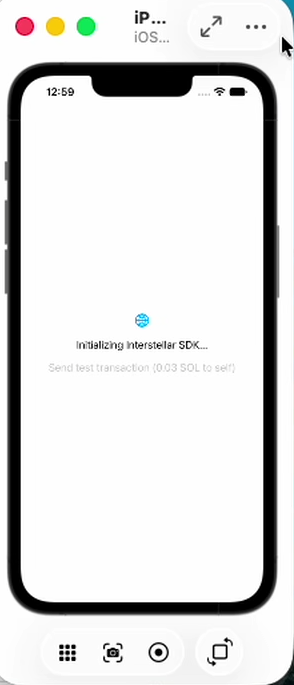
The app starting — the "Initializing Interstellar SDK…" placeholder (the same look as the Step 5 hello-world; SDK init takes 10–20 s — watch the Xcode console):
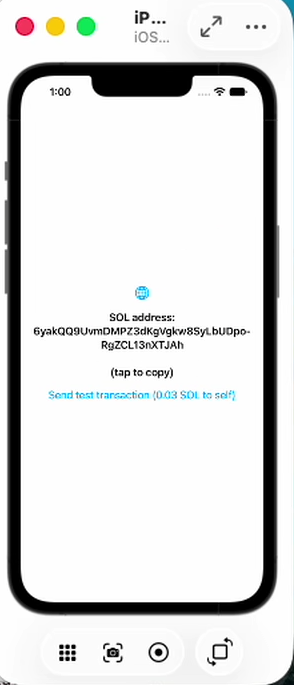
The all-in-one "full basic app" ready — the SOL address at the top (tap to copy) and the "Send test transaction" button:
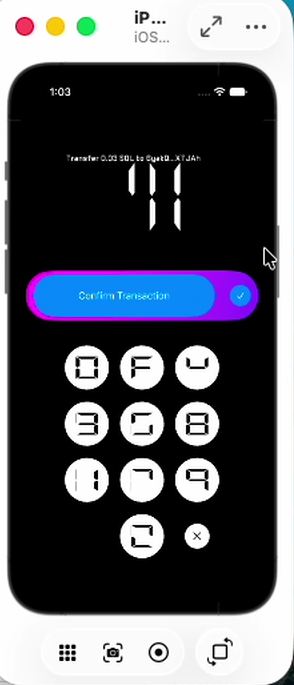
After funding the address, tapping "Send test transaction" and waiting ~10 s (the VCA circuits download — watch the Xcode console), the real VCA pinpad renders full-screen (the Metal renderer):
After entering the correct digits, the self-send broadcasts and the app is back on the main screen with the broadcasted tx hash in the status line:
How to test it
- Fund the SOL address the app shows (it is also printed to the Xcode console with the
[ContentView]tag). The balance must be above the VCA threshold — the dev stack's SOL threshold is 0.025 SOL, so0.03 SOLis above it and the pinpad must appear. Any smaller amount auto-sends without a pinpad. - Build and run the app (Xcode's Run ▶, or
xcodebuild … build). - Tap "Send test transaction (0.03 SOL to self)".
- Watch the Xcode console: the SDK sends the init extrinsic, polls the pending tx, and —
for an above-threshold amount — arms the pinpad (
RequiresVca). The full-screen Metal pinpad appears. - Enter the correct digits (if you know them) to broadcast the self-send, or wrong digits to see the rejection path (nothing is broadcast).
Some coins have a short-lived "pending tx TTL": a prepared SOL transaction is only valid for a short window (e.g. SOL < 30s on devnet) — cf the pinpad guide. If the pad is not completed in time the transaction fails — simply tap the button again.
The recipient is the app's own SOL address, so the test exercises the whole threshold → VCA → pinpad → signature → broadcast path without needing a second funded account. The funds only move if the correct digits are entered.
On an unfunded account the worker rejects the init extrinsic and the SDK surfaces the
failure — on iOS extrinsicClientInitializeTransaction returns "" (it does not throw
like Android's InterstellarException) — so the pinpad cannot be reached without funding. The
app shows the error in the status line and in the console; that is expected behaviour, not a
bug.
Alternative — build the SDK from source
Building the SDK from source is not supported at this stage. It is a complex setup that requires many dependencies to be installed and configured: Android Studio, a JVM, Rust (nightly), the Android NDK, and the full build toolchain. Use the published zip package as described in Step 2 unless you have a specific reason to build from source.
If you have the wallet-app-internal repository checked out, you can consume the SDK from the
checkout instead of from the published zip.
A. Use the local iosSdk/ package
The SDK is a Swift package in the repository (iosSdk/), so you can add that folder as a
local Swift package (File > Add Package Dependencies… > Add Local… → wallet-app-internal/iosSdk).
Its two binary targets point at the local build outputs, so the Rust libraries must be built once first:
# in the wallet-app-internal checkout
./iosApp/scripts/publish-ios-sdk.sh --version <version> --no-publish
# → iosApp/build/sdk/{substrate_clientFFI,rendererFFI}.xcframework
After that, the package resolves like the published one — Xcode links and embeds the frameworks, no linker flags.
B. Build the SDK into your app target (what the reference app does)
The wallet app does not use the package at all: it compiles the Rust static libraries and
links them directly, through a Run Script build phase (:shared:embedAndSignAppleFrameworkForXcode)
plus the FRAMEWORK_SEARCH_PATHS / LIBRARY_SEARCH_PATHS / OTHER_LDFLAGS build settings —
that is the "heavy" path the published package exists to avoid.
A is enough to patch the SDK (edit the Swift sources and rebuild). B is what the reference app does — use it only if you need the Rust libraries compiled into your own binary.
The iOS SDK is arm64 only (the device slice and the arm64 simulator slice) — see Step 0.4.
Troubleshooting
| Symptom | Fix |
|---|---|
no such module 'InterstellarSdk' | the package was not added to the target (not only to the project) — check Frameworks, Libraries, and Embedded Content |
Failed to build the package / "binary target … could not be found" | you added the zip instead of the unzipped folder — point Xcode at the InterstellarSdk/ directory that contains Package.swift |
| The app links but crashes on launch with a missing symbol | the frameworks were not embedded — make sure the SDK product is set to Embed & Sign in Frameworks, Libraries, and Embedded Content |
| App stuck on "Initializing…" | the local stack isn't reachable — check Docker is up and the URLs match |
Init throws Keychain init failed | rare Keychain entitlement issue on device — try the simulator first, then check signing team/entitlements |
| The QR scanner shows nothing in the Simulator | the iOS Simulator has no camera — feed it one with FauxCam (paste the URI in its QR tab), see the M6 demo notes |
| "save to files" opens a white window instead of the file explorer | a transient Simulator issue: Device → Erase All Content and Settings, then reinstall the app — see Overview |
Next: API Reference and the VCA pinpad guide.