Getting Started — Android
This guide creates a brand-new Android app in Android Studio, integrates the Interstellar SDK the most basic way, and ends with a single screen showing the root account ID — nothing else.
One Activity, one TextView, one InterstellarSdk.create(...) call. No Compose, no ViewModel, no pinpad — those are covered by the API Reference and pinpad guide.
Prerequisites
| Tool | Version / notes |
|---|---|
| Android Studio | recent stable (Hedgehog or later recommended) |
| JDK | 17 (Android Studio's embedded JBR is fine) |
| Android SDK | compileSdk 37 |
| Rust / NDK / cargo | not needed — the published AAR already ships the prebuilt native libraries (arm64-v8a + x86_64) |
| Interstellar stack | the local Docker stack from the M6 tutorial must be running (the SDK's default endpoints are wss://127.0.0.1:2090 / ws://127.0.0.1:9944 / IPFS 5001) |
| SDK access | read access to the private wallet-app-internal repo — the repo that hosts the SDK's Maven registry — plus a GitHub classic PAT with the read:packages scope — see Get access to the SDK |
The SDK is published as a private Maven package on GitHub Packages:
gg.interstellar.wallet:shared:<version> (the KMP root metadata + the Android AAR) — published and
verified end-to-end: an external consumer resolves exactly this coordinate from GitHub Packages
and builds an APK containing both ABIs. The package inherits the visibility of the repository it is
published from, so it stays private — see SDK access for
the full story.
The version changes with each SDK release — the current one is listed in the
SDK access section of the intro (0.1.0 at the time of
writing). Use the current one everywhere <version> appears below.
Step 0 — Install Android Studio and the Android SDK
The steps below describe a fresh-machine setup. The subsequent steps (creating the project, adding the SDK, running the app) have been tested on a fresh Ubuntu 26.04 VM with Android Studio installed through the App Manager (ie the Ubuntu snap package: sudo snap install android-studio --classic). That setup ships the SDK components the snap bundles, so your mileage on a clean machine may vary (the commands and links below are the canonical way).
The iOS guide starts from "install Xcode + a simulator"; the Android equivalent is Android Studio + the Android SDK.
0.1 — Install Android Studio
- Download and install Android Studio (the Koala or newer stable release is fine).
- Launch it once: the setup wizard installs the Android SDK (platform, build-tools, platform-tools) and offers to create an emulator.
0.2 — Check the SDK components
Open Tools → SDK Manager and make sure you have:
- an SDK Platform for the API level you target (
compileSdk 37in the example below), - SDK Tools and Platform-Tools (they provide
adb).
The published AAR already contains the compiled Rust libraries (arm64-v8a + x86_64).
You only need the NDK if you build the SDK from source — see Alternative.
0.3 — Create an emulator (or use a real device)
- Tools → Device Manager → + (Create Device) → pick a hardware profile (e.g. Pixel 8) and a system image → finish.
- …or plug a real phone in with USB debugging enabled.
The app crashes in the emulator with API 36+ (it is not the 16KB page model — API 35 runs fine with 16KB pages; API 36 may change low-level runtime behaviour for the Rust code). The problem is emulator-only: the app has been tested with Android 17 (API 37) on real devices (e.g. Pixel 9a). So pick the API 35 system image for the emulator.
0.4 — Sanity check
adb is not on your PATH by defaultAndroid Studio installs the platform-tools (which contain adb) inside the SDK directory, but
it does not add them to your shell PATH — so adb devices fails with Command 'adb' not
found even on a working setup. Two options:
-
use the full path (the default SDK location is
$HOME/Android/Sdk/platform-tools/adb— your actual location is shown in Android Studio under Settings → Languages & Frameworks → Android SDK → Android SDK Location):$HOME/Android/Sdk/platform-tools/adb devices -
or add the platform-tools directory to your
PATH(in your~/.bashrc/~/.zshrc):export PATH="$PATH:$HOME/Android/Sdk/platform-tools"
The rest of this guide uses plain adb, assuming one of the two options above.
adb devices # your emulator/device must be listed
Step 1 — Create a fresh project
-
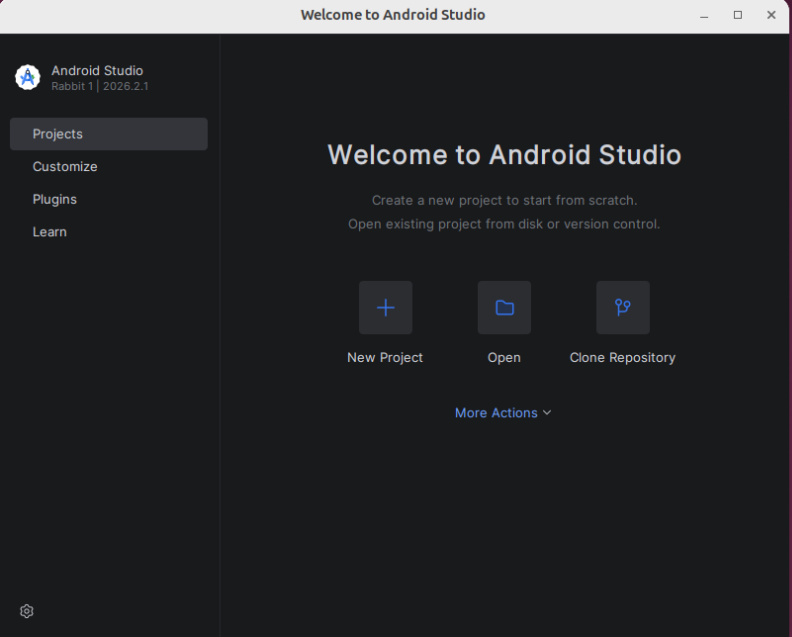
Launch Android Studio. From the landing page, click New project (you could also pick Clone repository to fetch an existing one, or Open to browse a local folder — we want a brand-new project here).
-
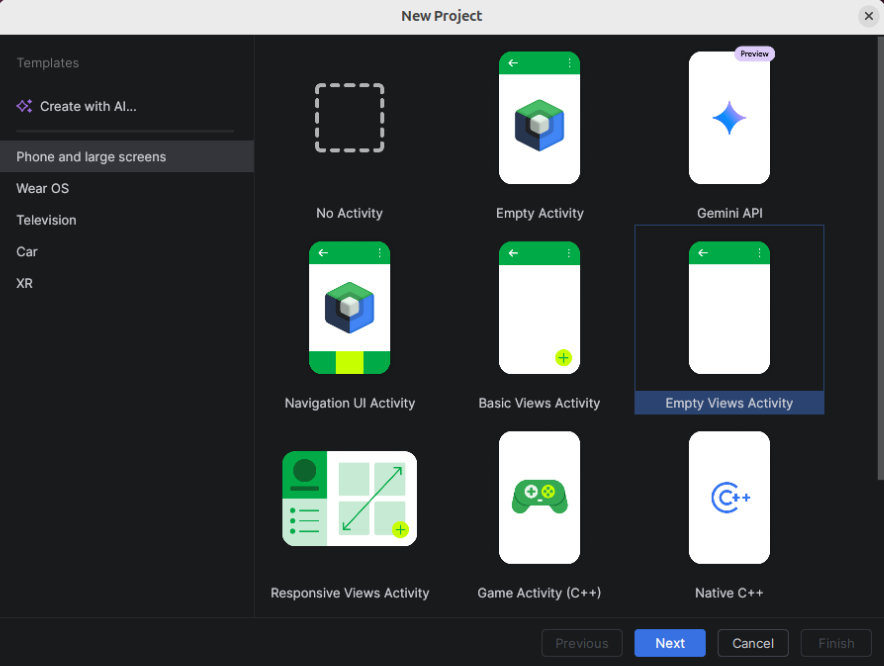
Pick the Empty Views Activity template in the project-type picker (don't pick No Activity or Empty Activity — the Views-flavoured one gives us a classic layout to edit in step 4).
-
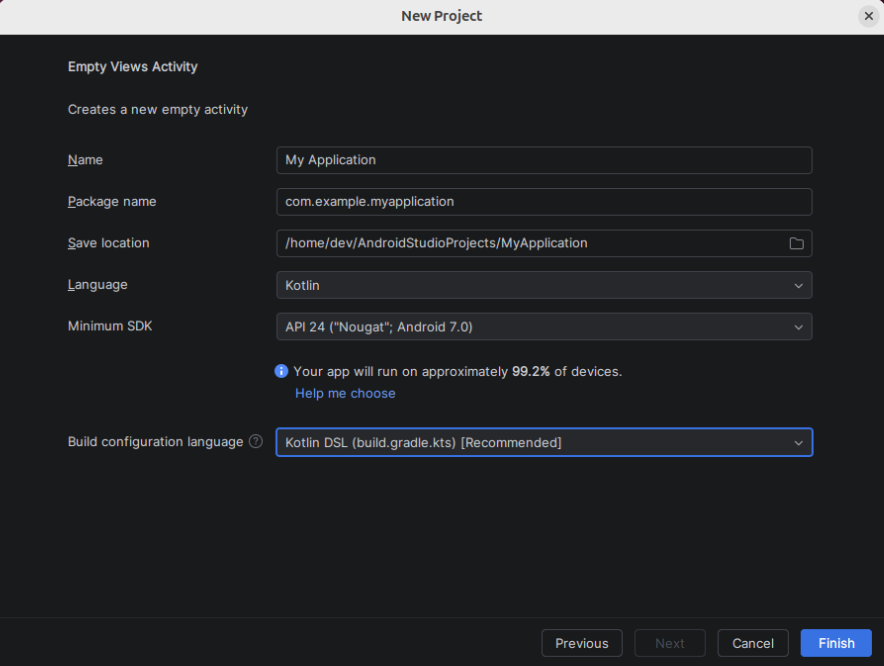
Pick a name —
My Application(or anything you like, e.g.MyFirstInterstellarApp); the Package name (com.example.myapplication), Language (Kotlin) and Minimum SDK (API 24, what the SDK requires) all default to the right values. Leave everything else as default.Then click Finish.
-
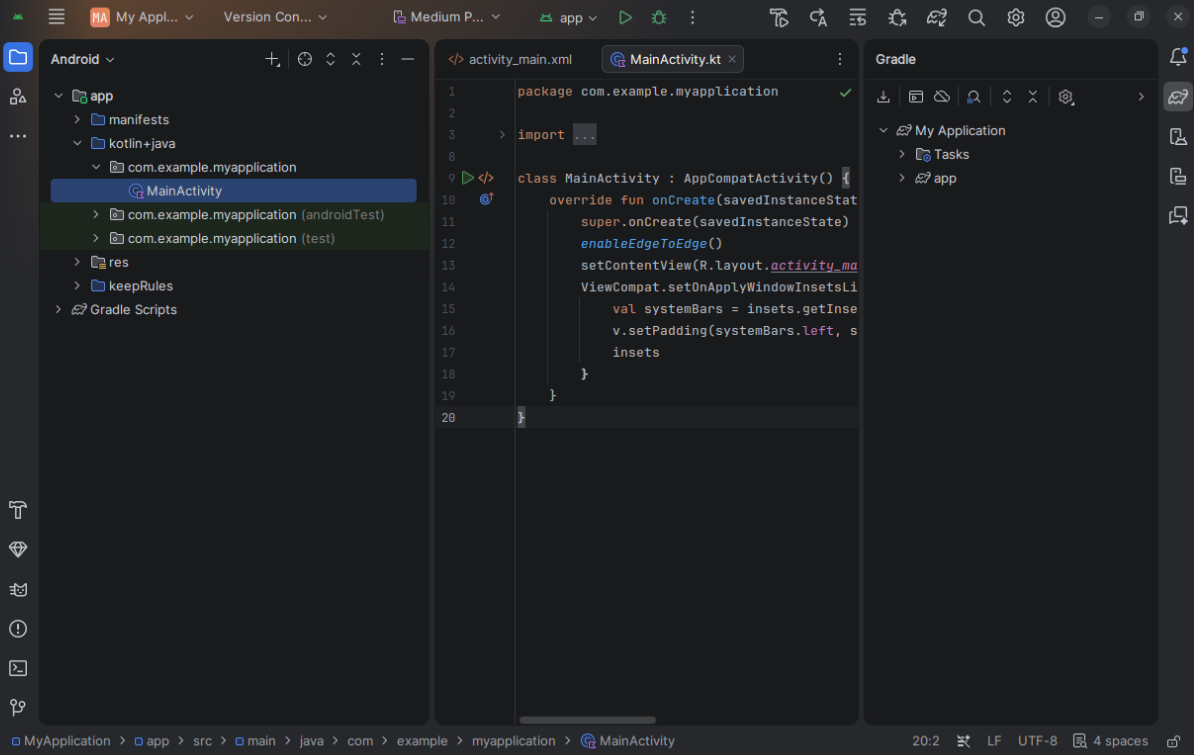
Wait for the template to materialise: the editor opens and Gradle sync starts in the background (progress shown in the status bar / Build window at the bottom). Let it finish before touching anything else — the SDK dependency added in the next step only resolves once the sync machinery is warm.
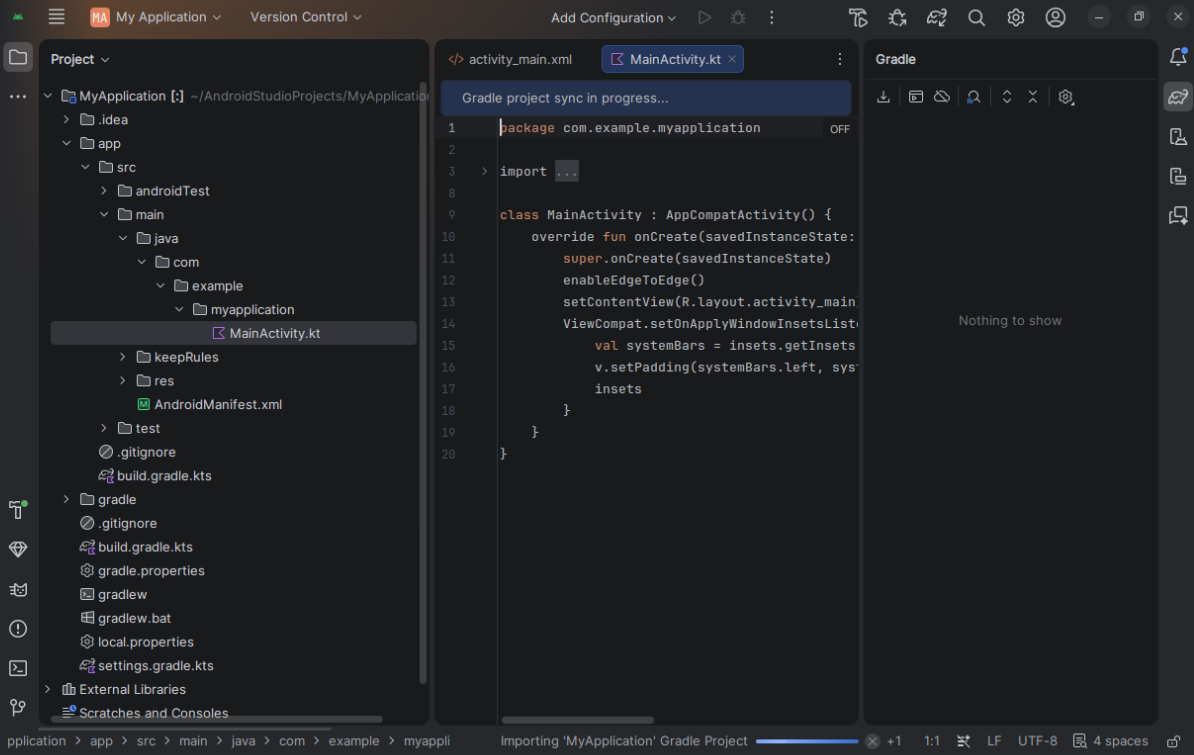
…and once Gradle has finished syncing, you should see this (the project tree on the left, the empty editor on the right, no more sync banners):
Step 2 — Get access to the SDK
The SDK lives in a private repository, so you need two things.
2.1 — Read access to the repository
Ask Interstellar for read access to Interstellar-Network/wallet-app-internal.
Why this repository? The Maven package could be published to any Maven registry; for simplicity we chose GitHub's built-in Maven registry on the same repository as the SDK sources. GitHub Packages registries are scoped to the repository they are published from, so the package is only visible to accounts that have read access to wallet-app-internal. The read access is needed for the registry — being able to read the sources with the same access is a side effect, not the reason.
2.2 — A GitHub classic personal access token
GitHub Packages only authenticates with a classic PAT — fine-grained tokens are not supported. From the official Gradle registry documentation:
GitHub Packages only supports authentication using a personal access token (classic). For more information, see Managing your personal access tokens.
The short version:
- GitHub → Settings → Developer settings → Personal access tokens → Tokens (classic) → Generate new token (classic).
- Select the
read:packagesscope (that is all a consumer needs). - If the organisation enforces SAML SSO, click Configure SSO and authorize the token for
Interstellar-Network. - Copy the token (
ghp_…) — GitHub shows it only once.
2.3 — Give the token to Gradle
Put it in your global Gradle properties — ~/.gradle/gradle.properties (never in the project, never in git).
On a fresh machine, ~/.gradle/gradle.properties does not exist — Android Studio only creates
the ~/.gradle directory itself (with caches/, daemon/, wrapper/, …) on first use, and there
is no gradle.properties in it. Create it first:
touch ~/.gradle/gradle.properties
Then add:
gpr.user=<your-github-username>
gpr.key=ghp_…your-classic-token…
gpr.user is your GitHub username (not your email, not the org name). The environment variables GITHUB_ACTOR / GITHUB_TOKEN work too if you prefer them.
⚠️ The Maven URL owner is lowercase. GitHub requires
maven.pkg.github.com/interstellar-network/…even though the organisation isInterstellar-Network. See Working with the Gradle registry.
Quick check (one-liner)
Before touching Gradle, verify the credentials end-to-end — this fetches the SDK's
maven-metadata.xml straight from the GitHub Packages registry using the two properties above:
curl -s -o /dev/null -w "%{http_code}\n" \
  -u "$(awk -F= '$1 ~ /^gpr.user/ {print $2}' ~/.gradle/gradle.properties | tr -d ' \r'):$(awk -F= '$1 ~ /^gpr.key/ {print $2}' ~/.gradle/gradle.properties | tr -d ' \r')" \
  https://maven.pkg.github.com/interstellar-network/wallet-app-internal/gg/interstellar/wallet/shared/maven-metadata.xml
| Code | Meaning |
|---|---|
| 200 | Success (Authenticated & Authorized) |
| 401 | Token invalid / expired / missing read:packages |
| 404 | Repository not found, no repo permissions, or token needs SAML SSO authorization |
Step 3 — Wire up Gradle
settings.gradle.kts — the only change is to add the GitHub Packages repository to the
dependencyResolutionManagement block (it is the only extra one; the SDK's own dependencies come
from google() and mavenCentral()).
Android Studio's template file looks like this — do not rewrite it, just add the maven { … }
block to dependencyResolutionManagement (the template's pluginManagement block with its
includeGroupByRegex filters and the foojay-resolver-convention plugin are fine as-is):
pluginManagement {
    repositories {
        google {
            content {
                includeGroupByRegex("com\\.android.*")
                includeGroupByRegex("com\\.google.*")
                includeGroupByRegex("androidx.*")
            }
        }
        mavenCentral()
        gradlePluginPortal()
    }
}
plugins {
    id("org.gradle.toolchains.foojay-resolver-convention") version "1.0.0"
}
dependencyResolutionManagement {
    repositoriesMode.set(RepositoriesMode.FAIL_ON_PROJECT_REPOS)
    repositories {
        google()
        mavenCentral()
        maven {                                          // ← ADD THIS BLOCK (the only change)
            name = "GitHubPackages"
            // NOTE: the owner MUST be lowercase, even though the org is "Interstellar-Network"
            // The final URL of the (private) GitHub Packages registry of the repo.
            url = uri("https://maven.pkg.github.com/interstellar-network/wallet-app-internal")
            credentials {
                username = providers.gradleProperty("gpr.user").orNull
                    ?: providers.environmentVariable("GITHUB_ACTOR").orNull
                password = providers.gradleProperty("gpr.key").orNull
                    ?: providers.environmentVariable("GITHUB_TOKEN").orNull
            }
        }
    }
}
rootProject.name = "My Application"
include(":app")
build.gradle.kts (root) — the new templates declare the plugin versions here with apply false.
The only change is the buildscript classpath override (see the warning below the catalog):
// Top-level build file where you can add configuration options common to all sub-projects/modules.
buildscript {
    dependencies {
        // AGP 9.0+ ships its own Kotlin compiler (2.2.x) — but the SDK is compiled with Kotlin 2.4.
        // This classpath entry forces AGP's built-in Kotlin to use 2.4.21 instead.
        classpath("org.jetbrains.kotlin:kotlin-gradle-plugin:2.4.21")
    }
}
plugins {
    alias(libs.plugins.android.application) apply false
}
app/build.gradle.kts — here too, the stock template already has everything needed (compileSdk 37,
minSdk 24 — exactly what the SDK requires). The only change is the SDK dependency line at the
end of the dependencies block (the plugins block stays exactly as the template has it — see the
warning below: do not apply org.jetbrains.kotlin.android on AGP 9):
plugins {
    alias(libs.plugins.android.application)
}

android {
    namespace = "com.example.myapplication"
    compileSdk {
        version = release(37)
    }

    defaultConfig {
        applicationId = "com.example.myapplication"
        minSdk = 24
        targetSdk = 37
        versionCode = 1
        versionName = "1.0"

        testInstrumentationRunner = "androidx.test.runner.AndroidJUnitRunner"
    }

    buildTypes {
        release {
            optimization {
                enable = true
                packageScope = setOf("androidx.**", "kotlin.**", "kotlinx.**")
            }
        }
    }
    compileOptions {
        sourceCompatibility = JavaVersion.VERSION_11
        targetCompatibility = JavaVersion.VERSION_11
    }
}

dependencies {
    implementation(libs.androidx.activity.ktx)
    implementation(libs.androidx.appcompat)
    implementation(libs.androidx.constraintlayout)
    implementation(libs.androidx.core.ktx)
    implementation(libs.androidx.material)
    implementation(libs.interstellar.sdk)   // ← ADD THIS LINE — the Interstellar SDK
    testImplementation(libs.junit)
    androidTestImplementation(libs.androidx.espresso.core)
    androidTestImplementation(libs.androidx.junit)
}
That single implementation(libs.interstellar.sdk) line pulls the SDK in: the GitHub Packages
repository added above resolves it, and its POM carries the transitive dependencies (JNA,
Compose, …), so nothing else has to be declared.
The SDK is declared through the version catalog (gradle/libs.versions.toml) like every other
dependency in the file — add to the catalog:
[versions]
interstellarSdk = "<version>"   # current version: see ../intro.md#status--scope-please-read

[libraries]
interstellar-sdk = { group = "gg.interstellar.wallet", name = "shared", version.ref = "interstellarSdk" }
The SDK is compiled with Kotlin 2.4 (its shared classes and the bundled
kotlin-stdlib-2.4.21 carry metadata version 2.4.0). The stock template compiles with the
Kotlin built into AGP 9.0+ (2.2.x — Kotlin support is part of AGP itself, and applying the
org.jetbrains.kotlin.android plugin is forbidden and fails the build) — that compiler can
only read metadata up to 2.3, so :app:compileDebugKotlin fails with a wall of
"Incompatible classes were found in dependencies / Module was compiled with an incompatible
version of Kotlin (2.4.0, expected 2.2.0)" errors on kotlin.Unit, the stdlib and every
gg.interstellar.wallet.* class.
The fix is to force AGP's built-in Kotlin to use 2.4.21: add the
buildscript { dependencies { classpath("org.jetbrains.kotlin:kotlin-gradle-plugin:2.4.21") } }
block to the root build.gradle.kts (snippet above) — do not apply
org.jetbrains.kotlin.android in either file.
If AGP still complains about metadata versions for any reason, the fallback is to suppress the
check at the bottom of app/build.gradle.kts:
kotlin {
    compilerOptions {
        freeCompilerArgs.add("-Xskip-metadata-version-check")
    }
}
Then clean and rebuild: ./gradlew clean compileDebugKotlin.
In general: the app's Kotlin compiler version must be ≥ the SDK's (bump the
kotlin-gradle-plugin classpath version when a newer SDK release requires it).
gradle.properties (project level) — the AAR is big (it embeds two native ABIs), so give the Gradle daemon enough heap:
org.gradle.jvmargs=-Xmx2048M
The published AAR contains both arm64-v8a (real devices) and x86_64 (emulators), so there is no missingDimensionStrategy("abi", …) to set — the same APK runs everywhere.
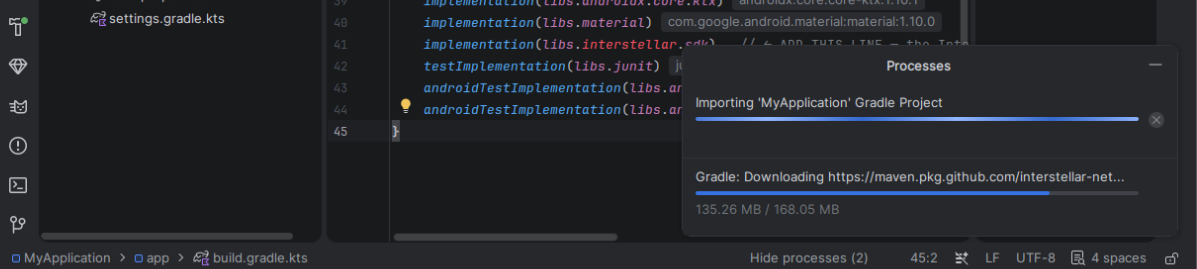
Then sync the project with Gradle files (the elephant-with-arrow icon in the toolbar, or File → Sync Project with Gradle Files): this triggers the SDK download. The first sync may take a few minutes depending on your connection — the AAR is large (it embeds the native libraries for both ABIs).
Step 4 — Initialize the SDK and show the root account ID
Replace the whole content of app/src/main/java/…/MainActivity.kt with the code below. The
template's boilerplate (enableEdgeToEdge(), the R.layout.activity_main + insets listener) is not
needed — this hello world builds its own single TextView in code. Keep the file at the same path;
only adjust the package line if you named your project something other than the default
My Application (= package com.example.myapplication). activity_main.xml becomes unused and
can be deleted.
package com.example.myapplication

import android.os.Bundle
import android.widget.TextView
import androidx.appcompat.app.AppCompatActivity
import androidx.lifecycle.lifecycleScope
import gg.interstellar.wallet.InterstellarSdk
import gg.interstellar.wallet.InterstellarFileSharer
import gg.interstellar.wallet.SdkInitListener
import kotlinx.coroutines.launch

class MainActivity : AppCompatActivity() {
    override fun onCreate(savedInstanceState: Bundle?) {
        super.onCreate(savedInstanceState)
        val textView = TextView(this).apply {
            setPadding(48, 48, 48, 48)
            setTextIsSelectable(true)
        }
        setContentView(textView)
        textView.text = "Initializing Interstellar SDK…"

        lifecycleScope.launch {
            try {
                val sdk = InterstellarSdk.create(
                    context = applicationContext,
                    fileSharer = object : InterstellarFileSharer {
                        // Only used by recovery-token export — not exercised in this hello-world.
                        override fun shareData(
                            data: ByteArray, fileName: String, mimeType: String, shareTitle: String,
                        ) { /* no-op */ }
                    },
                    listener = SdkInitListener {
                        // Server reset detected: returning here lets the SDK re-register.
                        // A real app shows a blocking warning dialog first.
                    },
                )
                val rootAccountId = sdk.getterRootAccount()
                textView.text =
                    "Root account ID:\n" + rootAccountId.joinToString("") { "%02x".format(it) }
            } catch (e: Exception) {
                textView.text = "SDK init failed: $e"
            }
        }
    }
}
What happens on first launch:
creategenerates a P-256 key in the Android Keystore,- registers the device/account on the Interstellar worker,
- caches balances and the root account,
getterRootAccount()returns the 32-byte root account id, displayed in hex.
Step 5 — Run it against the local stack
-
Start the Docker stack (node
9944, worker2090, IPFS5001) — see the M6 tutorial.Docker stack and Android Studio on different machinesThe
adb reversecommands below only forward the ports of the machine running Android Studio (theadbhost). If you run the compose stack on a different machine, you MUST handle port forwarding yourself (e.g.ssh -Ltunnels from the Android Studio machine to the stack machine, or any equivalent) so that127.0.0.1:2090/9944/5001on the Android Studio machine actually reach the stack. -
Plug in a device (or start an x86_64 emulator) and expose the local ports to it (remember:
adbis not onPATHby default — see Step 0.4):adb reverse tcp:2090 tcp:2090; adb reverse tcp:9944 tcp:9944; adb reverse tcp:5001 tcp:5001adb reverseneeds a connected device — and can drop silentlyThe command only works if a device or emulator is running (with
adbhaving detected it — checkadb devices); with no device it fails with error: no devices/emulators found.The reverse forwards can also stop working silently (e.g. when the device reconnects, after a device reboot, or when
adbrestarts) — so if the app suddenly showsSDK init failed: …, the first thing to check is the forwards. Keep an eye on them: re-run the command after any reconnect, or monitor it withwatch -n5 'adb reverse --list'(the list should show the three ports; re-run the command above if it is empty). -
Run ▶ the app.
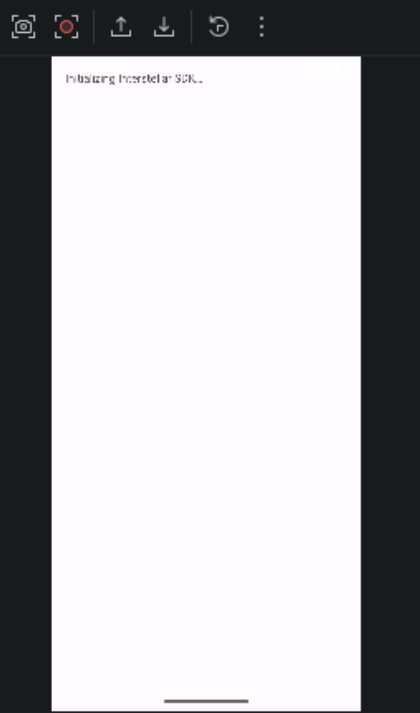
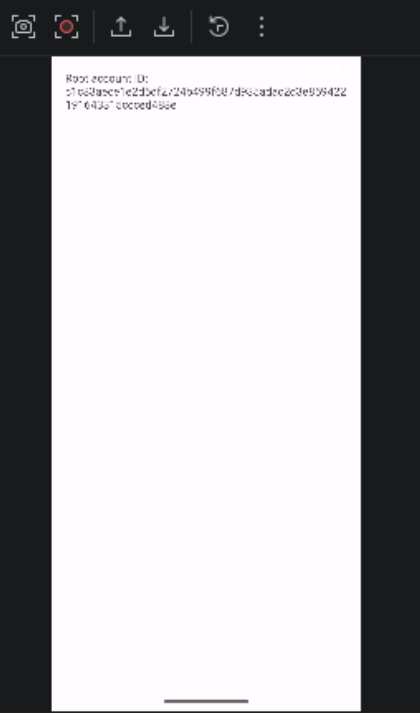
What to expect: While the app starts, watch the Logcat panel in Android Studio — you will see logs for the connection to the worker, key generation/registration in the Android Keystore, and the initial balance/account fetches. If everything works, the app first shows the "Initializing Interstellar SDK…" placeholder message, then the 64-character hex root account ID after about 10–20 seconds.
The app starting — the placeholder message:
The app ready — the root account ID:
The same device key + root account survive app restarts (and iOS reinstalls, see the iOS guide).
Step 6 — (advanced, not production-ready) Test the VCA pinpad with an all-in-one MainActivity.kt
The file below is an all-in-one "full basic app" that exercises the real VCA pinpad on
Android: it creates a SOL keypair, shows the SOL address (with copy-to-clipboard), sends a
self-transfer above the VCA threshold, and displays the real WGPU-rendered pinpad
(TxPinpadView) when the SDK arms it. It is intended for testing the pinpad integration —
not for production use.
▶ Show the hidden step 6
Replace the whole content of your hello-world MainActivity.kt with the file below — it is
self-contained: the UI (built in code), the SDK initialization, the SOL keypair/address handling,
the test-transaction trigger, and the pinpad overlay are all in this single file. The comments at
the top explain what it does and why each piece exists. Keep the file at the same path
(app/src/main/java/com/example/myapplication/MainActivity.kt).
- Creates the SOL keypair if it does not exist. Registration already creates keypairs; the
extrinsicClientAddKeypair(CoinType.Sol)call is idempotent (no-op when the keypair exists), so it is safe on every launch. - Shows the SOL address in a
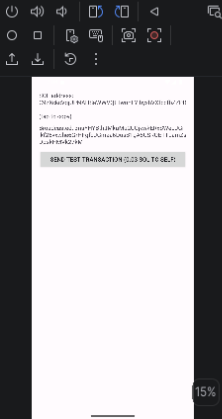
TextViewand in Logcat (MainActivitytag). - Copies the address to the clipboard when you tap it — with the same "Address copied" Toast as the main app.
- "Send test transaction" button: initializes a self-send of 0.03 SOL (above the
dev-stack VCA threshold of 0.025 SOL), polls the pending tx, and calls
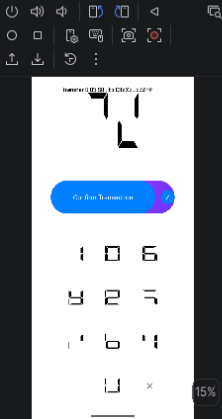
prepareCoinTransfer(CoinType.Sol)to arm the pinpad. - Displays the real VCA pinpad (
TxPinpadView) full-screen when the SDK signalsnavigateToPinpad = true. Entering enough digits triggers the real WGPU-rendered pinpad flow; the callback returns the broadcasted tx hash (ornullfor a rejection).
package com.example.myapplication

import android.content.ClipData
import android.content.ClipboardManager
import android.content.Context
import android.os.Bundle
import android.util.Log
import android.widget.Button
import android.widget.FrameLayout
import android.widget.LinearLayout
import android.widget.TextView
import android.widget.Toast
import androidx.appcompat.app.AppCompatActivity
import androidx.compose.material.lightColors
import androidx.lifecycle.lifecycleScope
import gg.interstellar.wallet.CoinType
import gg.interstellar.wallet.InterstellarFileSharer
import gg.interstellar.wallet.InterstellarSdk
import gg.interstellar.wallet.JniTxAmount
import gg.interstellar.wallet.SdkInitListener
import gg.interstellar.wallet.TxPinpadView
import kotlinx.coroutines.delay
import kotlinx.coroutines.launch

/**
 * ALL-IN-ONE "Full Basic App" — the iOS equivalent lives in the iOS guide's hidden Step 6
 * (developers/SDK/ios/getting-started.md): the same flow, in a single ContentView.swift.
 *
 * Demonstrates, in a single file:
 *  1. creating a SOL keypair if it does not exist,
 *  2. displaying the SOL address in a TextView AND in Logcat,
 *  3. copy-to-clipboard on tapping the address (with a Toast),
 *  4. a "Send test transaction" button (SOL, 0.03 = ABOVE the 0.025 VCA threshold),
 *  5. arming and displaying the REAL VCA pinpad (WGPU-rendered TxPinpadView).
 *
 * The transaction is a SELF-SEND (recipient = our own SOL address), so the goal is to
 * exercise the pinpad — not to move funds. The tx only broadcasts if the correct digits
 * are entered; the pinpad itself works offline once the VCA circuits have been armed.
 */
class MainActivity : AppCompatActivity() {
    private var sdk: InterstellarSdk? = null
    private lateinit var addressTextView: TextView
    private lateinit var statusTextView: TextView
    private lateinit var sendButton: Button
    private var pinpadView: TxPinpadView? = null
    private var rootLayout: FrameLayout? = null

    override fun onCreate(savedInstanceState: Bundle?) {
        super.onCreate(savedInstanceState)

        // Build the UI in code — a single all-in-one Activity, no layout XML.
        val root = FrameLayout(this)
        rootLayout = root
        val content = LinearLayout(this).apply {
            orientation = LinearLayout.VERTICAL
            setPadding(48, 96, 48, 48)
        }

        addressTextView = TextView(this).apply {
            text = "Initializing Interstellar SDK…"
            setTextIsSelectable(true)
            setOnClickListener { copyAddressToClipboard() }
        }

        statusTextView = TextView(this).apply {
            text = ""
            setPadding(0, 24, 0, 24)
        }

        sendButton = Button(this).apply {
            text = "Send test transaction (0.03 SOL to self)"
            isEnabled = false
            setOnClickListener { sendTestTransaction() }
        }

        content.addView(addressTextView)
        content.addView(statusTextView)
        content.addView(sendButton)
        root.addView(content)
        setContentView(root)

        // 1. Initialize the SDK.
        lifecycleScope.launch {
            try {
                val newSdk = InterstellarSdk.create(
                    context = applicationContext,
                    fileSharer = object : InterstellarFileSharer {
                        // Only used by recovery-token export — not exercised here.
                        override fun shareData(
                            data: ByteArray, fileName: String, mimeType: String, shareTitle: String,
                        ) { /* no-op */ }
                    },
                    listener = SdkInitListener {
                        // Server reset detected — a real app shows a blocking dialog here.
                    },
                )
                sdk = newSdk

                // 2. Create the SOL keypair if it does not exist. Registration already creates
                // keypairs; this call is idempotent (no-op when the keypair exists), so it is
                // safe to call on every launch.
                newSdk.extrinsicClientAddKeypair(CoinType.Sol)

                // 3. Fetch the SOL address and show it in the TextView + Logcat.
                val solAddress = newSdk.getterClientGetAccount(CoinType.Sol)
                if (solAddress == null) {
                    addressTextView.text = "ERROR: getterClientGetAccount(SOL) returned null"
                } else {
                    addressTextView.text = "SOL address:\n$solAddress\n\n(tap to copy)"
                    Log.i(TAG, "SOL address: $solAddress")
                    sendButton.isEnabled = true
                }
            } catch (e: Exception) {
                addressTextView.text = "SDK init failed: $e"
                Log.e(TAG, "SDK init failed", e)
            }
        }

        // 5. Observe the SDK's pinpad state — the SDK arms it when an above-threshold tx
        // needs VCA confirmation. TxPinpadView renders the real WGPU pinpad.
        lifecycleScope.launch {
            while (sdk == null) delay(100)
            sdk!!.navigateToPinpad.collect { show ->
                if (show && sdk?.pendingCircuitsPackage?.value != null) {
                    showPinpad()
                }
            }
        }
    }

    /** Copy the SOL address to the clipboard, mirroring the main app's "Address copied" Toast. */
    private fun copyAddressToClipboard() {
        val text = addressTextView.text.toString()
        if (!text.contains("SOL address")) return
        val clipboard = getSystemService(Context.CLIPBOARD_SERVICE) as ClipboardManager
        clipboard.setPrimaryClip(ClipData.newPlainText("SOL address", text))
        Toast.makeText(this, "Address copied", Toast.LENGTH_SHORT).show()
    }

    /**
     * 4. "Send test transaction": initialize a SELF-SEND of 0.03 SOL (above the 0.025 VCA
     * threshold), poll the pending tx, then arm the pinpad via prepareCoinTransfer().
     *
     * NOTE: creating an above-threshold tx requires a funded account. On an unfunded account
     * the worker rejects the init extrinsic and the SDK surfaces InterstellarException —
     * the pinpad therefore cannot be reached without funding. That is expected.
     */
    private fun sendTestTransaction() {
        val currentSdk = sdk ?: return
        sendButton.isEnabled = false
        statusTextView.text = "Creating tx…"
        lifecycleScope.launch {
            try {
                // Self-send: recipient = our own SOL address.
                val recipient = currentSdk.getterClientGetAccount(CoinType.Sol)
                if (recipient == null) {
                    statusTextView.text = "ERROR: SOL address not available"
                    sendButton.isEnabled = true
                    return@launch
                }

                currentSdk.extrinsicClientInitializeTransaction(
                    recipient = recipient,
                    txAmount = JniTxAmount.fixed(0.03),
                    coinType = CoinType.Sol,
                )
                Log.i(TAG, "initialize tx sent; polling for pending tx…")

                // Poll for the pending tx — the worker processes the init asynchronously.
                var pending = currentSdk.getterClientGetPendingTx()
                var tries = 0
                while (pending == null && tries < 30) {
                    delay(1_000)
                    pending = currentSdk.getterClientGetPendingTx()
                    tries++
                }

                when (pending?.status) {
                    0 -> {
                        // RequiresVca: arm the pinpad. The navigateToPinpad collector shows it.
                        statusTextView.text = "Above threshold → pinpad required"
                        Log.i(TAG, "RequiresVca: arming pinpad via prepareCoinTransfer")
                        currentSdk.prepareCoinTransfer(CoinType.Sol)
                    }
                    1 -> {
                        // AutoSent: below threshold — no pinpad. Should not happen for 0.03 SOL.
                        statusTextView.text = "Auto-sent: txHash=${pending.txHash}"
                        Log.i(TAG, "AutoSent txHash=${pending.txHash}")
                        sendButton.isEnabled = true
                    }
                    else -> {
                        statusTextView.text = "No pending tx (status=${pending?.status})"
                        sendButton.isEnabled = true
                    }
                }
            } catch (e: Exception) {
                // An unfunded account makes the worker reject the init extrinsic:
                // the SDK surfaces InterstellarException instead of hanging.
                statusTextView.text = "Send failed: $e"
                Log.e(TAG, "Send failed", e)
                sendButton.isEnabled = true
            }
        }
    }

    /** 5. Display the real VCA pinpad as a full-screen overlay. */
    private fun showPinpad() {
        val currentSdk = sdk ?: return
        val root = rootLayout ?: return
        pinpadView?.let { root.removeView(it) }
        val pinpad = TxPinpadView(this)
        pinpad.setup(
            currentSdk,
            lightColors(),
        ) { txHash ->
            Log.i(TAG, "pinpad callback txHash=$txHash")
            runOnUiThread {
                root.removeView(pinpad)
                pinpadView = null
                sendButton.isEnabled = true
                statusTextView.text =
                    if (txHash != null) "Broadcasted: $txHash" else "Pinpad rejected (nothing broadcast)"
                Toast.makeText(
                    this@MainActivity,
                    if (txHash != null) "Transaction sent!" else "Transaction rejected",
                    Toast.LENGTH_LONG,
                ).show()
            }
        }
        pinpadView = pinpad
        root.addView(
            pinpad,
            FrameLayout.LayoutParams(
                FrameLayout.LayoutParams.MATCH_PARENT,
                FrameLayout.LayoutParams.MATCH_PARENT,
            ),
        )
    }

    companion object {
        private const val TAG = "MainActivity"
    }
}
What it should look like
The all-in-one "full basic app" running in the Android emulator — the SOL address at the top (tap to copy) and the "Send test transaction" button:
After tapping the button on a funded account, the real VCA pinpad renders full-screen (the WGPU renderer):
How to test it
- Fund the SOL address the app shows (it is also printed to Logcat with the
MainActivitytag). The balance must be above the VCA threshold — the dev stack's SOL threshold is 0.025 SOL, so0.03 SOLis above it and the pinpad must appear. Any smaller amount auto-sends without a pinpad. - Build and install the app (Android Studio's Run ▶, or
./gradlew installDebug). - Tap "Send test transaction (0.03 SOL to self)".
- Watch Logcat: the SDK sends the init extrinsic, polls the pending tx, and — for an
above-threshold amount — arms the pinpad (
RequiresVca). The full-screen WGPU pinpad appears. - Enter the correct digits (if you know them) to broadcast the self-send, or wrong digits to see the rejection path (nothing is broadcast).
The recipient is the app's own SOL address, so the test exercises the whole threshold → VCA → pinpad → signature → broadcast path without needing a second funded account. The funds only move if the correct digits are entered.
On an unfunded account the worker rejects the init extrinsic and the SDK surfaces
InterstellarException — the pinpad therefore cannot be reached without funding. The app shows
the error in the status line and in Logcat; that is expected behaviour, not a bug.
Alternative — build the SDK from source
Building the SDK from source is not supported at this stage. It is a complex setup that requires many dependencies to be installed and configured: Android Studio, a JVM, Rust (nightly), the Android NDK, and the full build toolchain. Use the published Maven artifact as described in Step 2 unless you have a specific reason to build from source.
If you have the wallet-app-internal repository checked out, you can consume the SDK without
the private Maven registry at all. There are two ways — pick the one that fits what you are doing.
A. A composite build (no publish at all)
The SDK is a Gradle module of that repository, so you can include the whole checkout as a
composite build and let Gradle resolve gg.interstellar.wallet:shared to the local project.
settings.gradle.kts
includeBuild("<path-to>/wallet-app-internal") {
    dependencySubstitution {
        // any requested version resolves to the local :shared project
        substitute(module("gg.interstellar.wallet:shared")).using(project(":shared"))
    }
}
app/build.gradle.kts — the dependency stays the same (<version> is arbitrary here — the
composite build substitutes any requested version with the local :shared project):
dependencies {
    implementation("gg.interstellar.wallet:shared:<version>")
}
This is the closest to "just consume the clone": the Rust build runs inside the checkout (the
cargo workspace lives at the root of the wallet-app-internal Gradle build), so you do not have
to move any file around.
B. Publish to a local Maven repository
The other way is to let the SDK publish itself to a local Maven folder, and to consume it exactly like the published artifact (same coordinates, same POM, same transitive dependencies):
# in the wallet-app-internal checkout — any version works as long as the two
# occurrences below match (a `-local` suffix avoids clashing with real releases)
./gradlew :shared:publishSdkToLocalTest -Psdk.version=<version>-local
# → shared/build/local-maven/gg/interstellar/wallet/shared/…
Then add the repository to settings.gradle.kts:
repositories {
    google()
    mavenCentral()
    maven {
        name = "localSdk"
        url = uri("<path-to>/wallet-app-internal/shared/build/local-maven")
    }
}
dependencies {
    implementation("gg.interstellar.wallet:shared:<version>-local")  // same as the publish above
}
- A (composite build) — you are patching the SDK: the sources are rebuilt on every build, no intermediate artifact.
- B (local Maven) — you want to check that the published artifact is complete (the POM
carries the transitive metadata: JNA, Compose, …). This is exactly what the CI's
SDK consumer smoke test does
with
sdk-consumer/.
Building the SDK from source needs Rust nightly, the Android NDK and the cargo Android
targets (rustup target add aarch64-linux-android x86_64-linux-android). Prefer the published
artifact unless you want to patch the SDK.
Troubleshooting
| Symptom | Fix |
|---|---|
Could not find gg.interstellar.wallet:shared:<version> | the GitHub Packages repository is missing or the credentials are wrong — check the URL (lowercase owner!), gpr.user / gpr.key in ~/.gradle/gradle.properties, and that your token has read:packages and SSO authorization |
401 Unauthorized / 403 Forbidden | your token is missing the read:packages scope, or it was not authorized for the org's SSO, or you have no read access to the private repo |
Received status code 402 while publishing (maintainers) | the organisation's GitHub Packages budget is exhausted — see the Packages billing docs |
OutOfMemoryError / D8 dex merge fails | raise org.gradle.jvmargs to -Xmx2048M in the project's gradle.properties |
App shows SDK init failed: … at start | the local stack isn't reachable — check Docker + adb reverse for all three ports |
| Init succeeds but no balances | expected for a fresh account — fund the coin address (see the M6 tutorial) |
Next: API Reference and the VCA pinpad guide.